ADOPE / Works

Clip

텍스트 · 이미지 · 파일 클립보드 기록과 즐겨찾기, 스니펫, 텍스트 대치를 한 패널에서 관리하는 맥 앱입니다. 여러 개를 차례로 복사해 순서대로 붙여넣는 붙여넣기 스택도 담았습니다. 패널은 어디서든 단축키(⌃⌥V)로 열 수 있습니다. 기획부터 디자인, Swift 개발까지 진행했습니다.A Mac app that keeps clipboard history (text, images, files), favourites, snippets and text expansion in one panel, plus a paste stack that pastes several copies in order. The panel opens from anywhere with a shortcut (⌃⌥V). I handled planning, design and Swift development.

macOS · 2026
NotesFileEditFormat Wed 7 Oct01:12
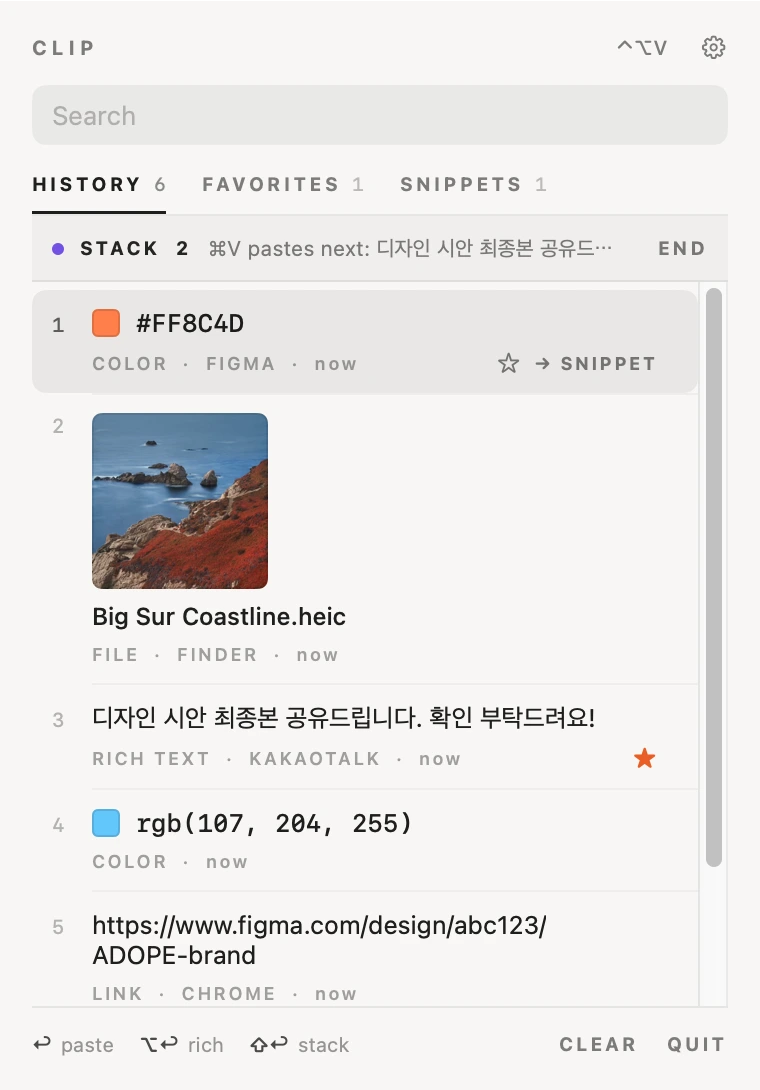
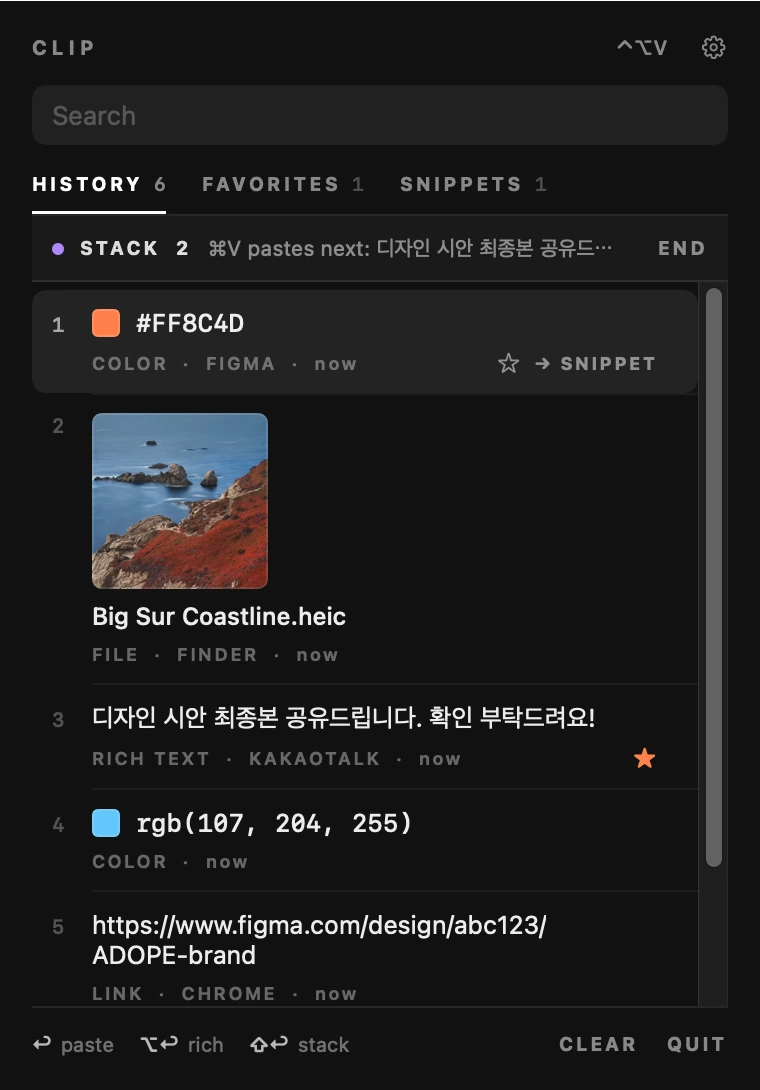
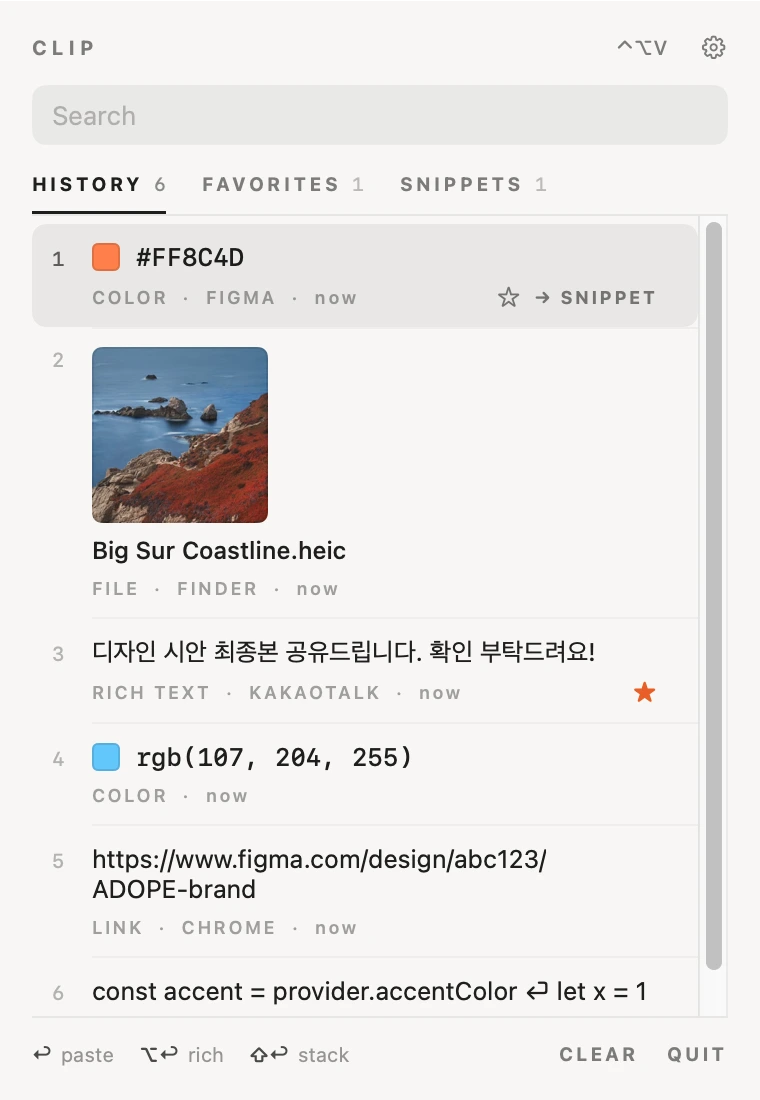
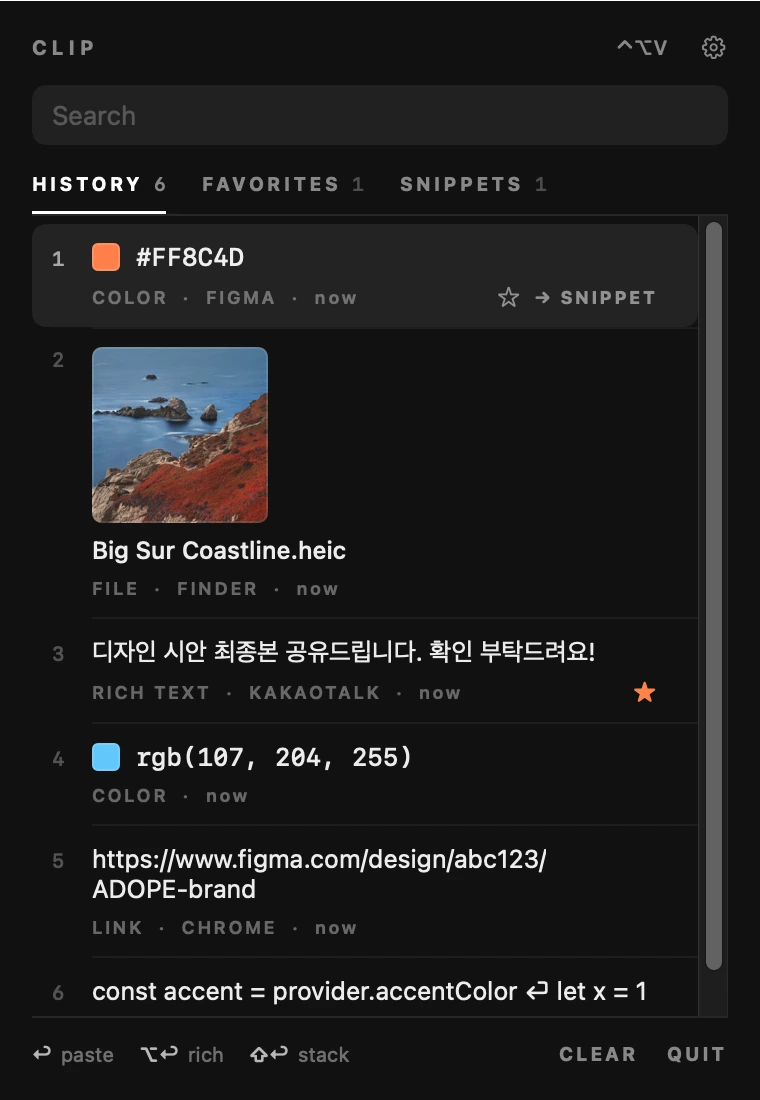
Clip panel, light: clipboard history with text, colour, image file, link and code items Clip panel, dark: clipboard history with text, colour, image file, link and code items
01 — History

복사한 내용 모아보기Everything you copied

복사한 순서대로 번호가 붙고, ⌘1–9로 바로 붙여넣기가 가능합니다.Items are numbered in the order you copied them, and ⌘1–9 pastes one directly.

서식 있는 텍스트Rich textRICH TEXT

Return은 서식 없이, ⌥Return은 서식을 유지해서 붙여넣습니다. 어느 앱에서 복사했는지도 함께 표시됩니다.Return pastes plain text, ⌥Return keeps formatting. The source app is shown too.

색상 값ColoursCOLOR

HEX · RGB · HSL 값을 인식해 색 견본과 함께 보여주고, HEX · RGB · HSL · SwiftUI Color(...) 중 원하는 형식으로 바꿔 복사할 수 있습니다.HEX, RGB and HSL values get a swatch and can be copied as HEX, RGB, HSL or a SwiftUI Color(...).

이미지 · 파일Images and filesFILE

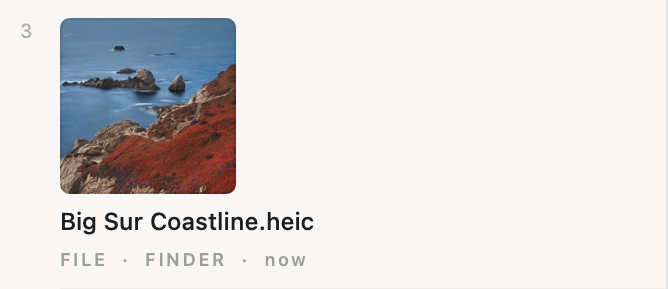
미리보기와 함께 저장됩니다. Finder에서 복사한 파일은 파일 그대로 다시 붙여넣을 수 있고, 우클릭으로 경로만 텍스트로 붙여넣거나 Finder에서 위치를 열 수 있습니다. 이미지 속 글자는 OCR로 텍스트만 꺼내 복사할 수 있습니다.Saved with a preview. Files copied in Finder paste back as files; right-click to paste just the path as text or reveal it in Finder. Text inside an image can be pulled out with OCR.

링크LinksLINK

추적용 파라미터를 지운 깨끗한 주소로 붙여넣습니다. 아래에서 자세히 볼 수 있습니다.Pasted as a clean address with tracking parameters removed — more below.

여러 줄 텍스트Multi-line textTEXT

목록에서는 한 줄로 줄이고 줄바꿈 위치를 ⏎로 표시해, 길이와 상관없이 한눈에 구분됩니다.Shown on one line with ⏎ marking line breaks, so long items stay easy to scan.

검색Search패널을 열면 바로 검색창에 입력할 수 있습니다. “image”나 “이미지”로 이미지만, 경로 일부로 파일을 찾을 수 있습니다.Type as soon as the panel opens. “image” finds only images, and part of a path finds files.
깔끔한 기록A tidy history드래그하는 동안 계속 복사되는 터미널 같은 앱도, 같은 앱에서 3초 안에 이어진 복사는 한 줄로 합쳐 기록합니다. 공백뿐인 복사와 비밀번호 앱에서 복사한 내용은 기록하지 않습니다.Apps that copy on every drag, like some terminals, are merged: copies from the same app within 3 seconds become one entry. Blank copies and anything from password managers are never recorded.
메뉴 막대 ✓✓ in the menu bar무언가 복사되면 메뉴 막대 아이콘이 잠깐 체크 표시로 바뀌어 복사됐다는 것을 알려줍니다.After each copy the menu bar icon briefly turns into a check mark.
02 — Paste stack

연속 복사 · 연속 붙여넣기Copy several, paste in order

단축키(⌃⌥X)로 스택을 켜고 필요한 것들을 차례로 복사한 뒤, ⌘V를 누를 때마다 복사한 순서대로 하나씩 붙여넣습니다. 다 붙여넣으면 스택은 자동으로 꺼지고, 기록에 있던 항목도 ⇧클릭으로 스택에 넣을 수 있습니다. 이름 · 메일 · 연락처처럼 여러 칸을 채울 때 씁니다.Turn the stack on with a shortcut (⌃⌥X), copy what you need one after another, and each ⌘V pastes the next one in the order you copied. The stack switches off once it is empty, and ⇧-click adds items from history. Useful for filling several fields like name, email and phone.

1 · 복사1 · Copy⌘C
NAME하리다RIDA HA
EMAILadope@ridaha.com
PHONE010-9619-3372
2 · 스택에 쌓임2 · Stacked⌃⌥X
STACK 0Copy things — ⌘V pastes them in order
3 · 붙여넣기3 · Paste⌘V
NAME
EMAIL
PHONE
Panel with the paste stack on: STACK 2, ⌘V pastes nextPanel with the paste stack on: STACK 2, ⌘V pastes next
기록에서 골라 담기Pick from history이미 복사해 둔 항목도 ⇧↩나 ⇧클릭으로 스택에 넣을 수 있어, 다시 복사하러 돌아가지 않아도 됩니다.⇧↩ or ⇧-click adds items already in history, so there is no need to copy them again.
활용 예Use cases회원가입 · 주문서처럼 입력 칸이 여러 개인 양식을 채우거나, 견적서에 품목을 옮겨 적거나, 여러 문서의 문장을 한 곳에 모을 때 사용할 수 있습니다.Filling forms with many fields, moving line items into a quote, or gathering sentences from several documents into one place.
03 — Favorites

즐겨찾기Favourites

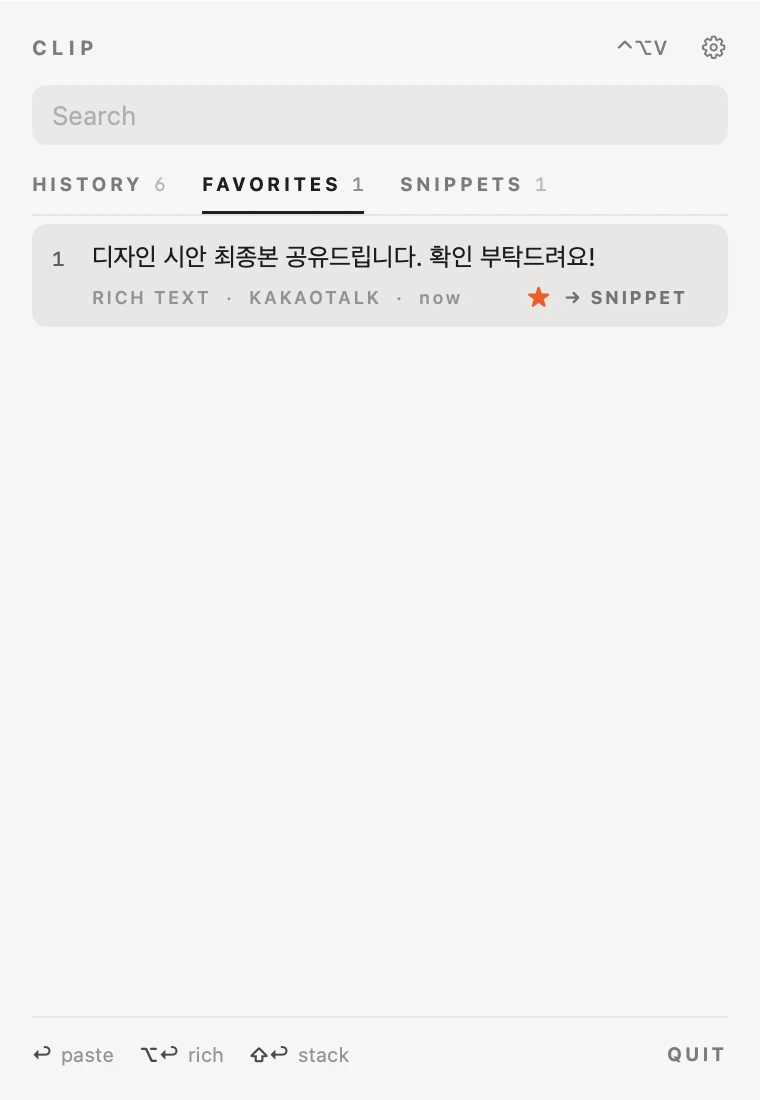
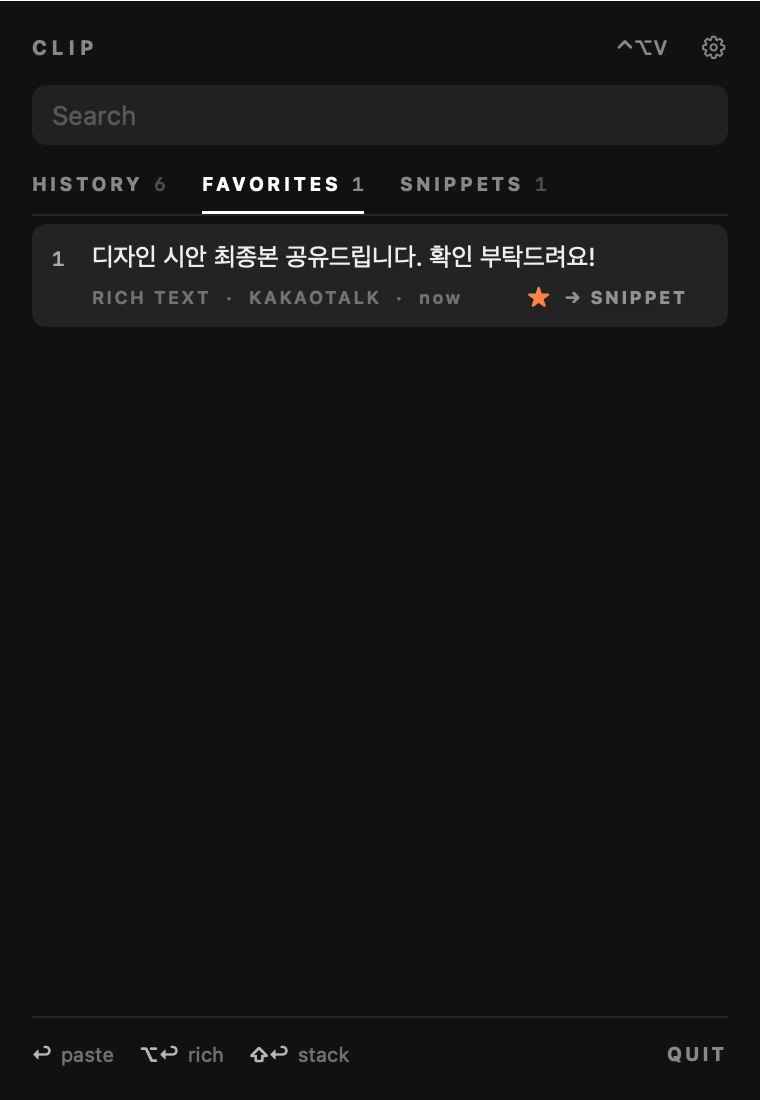
자주 꺼내 쓰는 항목은 즐겨찾기로 따로 모아 둘 수 있습니다. 행에 마우스를 올리면 오른쪽에 ☆가 나타나고, 누르면 주황 ★로 바뀌며 FAVORITES 탭에 모입니다(⌘D).Items you reach for often can be kept as favourites. Hover a row and a ☆ appears; click it and it turns into an orange ★ and joins the FAVORITES tab (⌘D).

HISTORY 3FAVORITES 0
지워지지 않는 항목Never cleared즐겨찾기한 항목은 개수 제한이나 보관 기간이 지나도 지워지지 않습니다.Favourites survive the item limit and the retention period.
기록 순서는 그대로History order staysHISTORY는 즐겨찾기와 관계없이 복사한 시간 순서대로 보입니다.HISTORY stays in copy order, favourite or not.
FAVORITES tab with a starred itemFAVORITES tab with a starred item
04 — Clean links

링크 추적 제거Tracking removed

utm_, fbclid, gclid 같은 추적 파라미터를 지우고 필요한 주소만 남깁니다. 설정에서 끌 수 있습니다.Tracking parameters such as utm_, fbclid and gclid are stripped, leaving only the address. It can be turned off in settings.

https://www.example.com/journal/spring-collection?utm_source=newsletter&utm_medium=email&utm_campaign=spring&fbclid=IwAR2x9Kd
복사한 주소As copied
붙여넣기 변환Paste transformed

우클릭 → Paste Transformed로 대문자 · 소문자 · 단어 첫 글자 대문자 · 한 줄로 합치기를 골라 바꿔서 붙여넣을 수 있습니다.Right-click → Paste Transformed pastes in UPPERCASE, lowercase, Title Case, or joined into one line.

05 — Snippets

스니펫 · 텍스트 대치Snippets and expansion

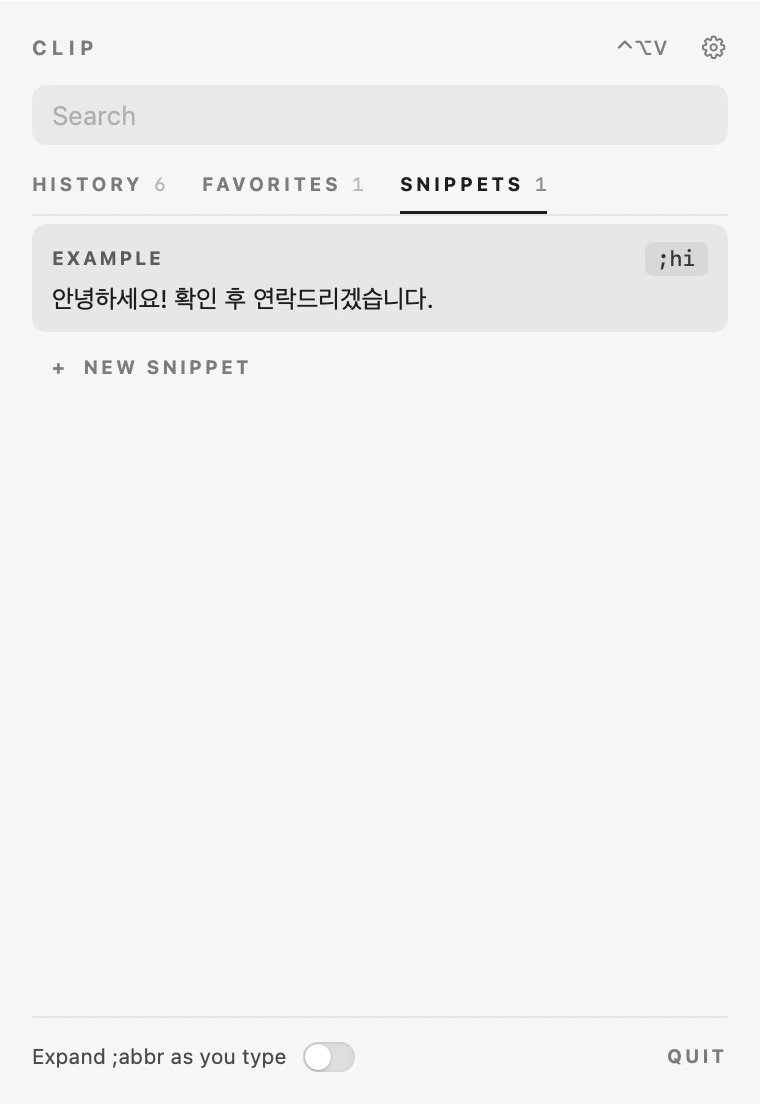
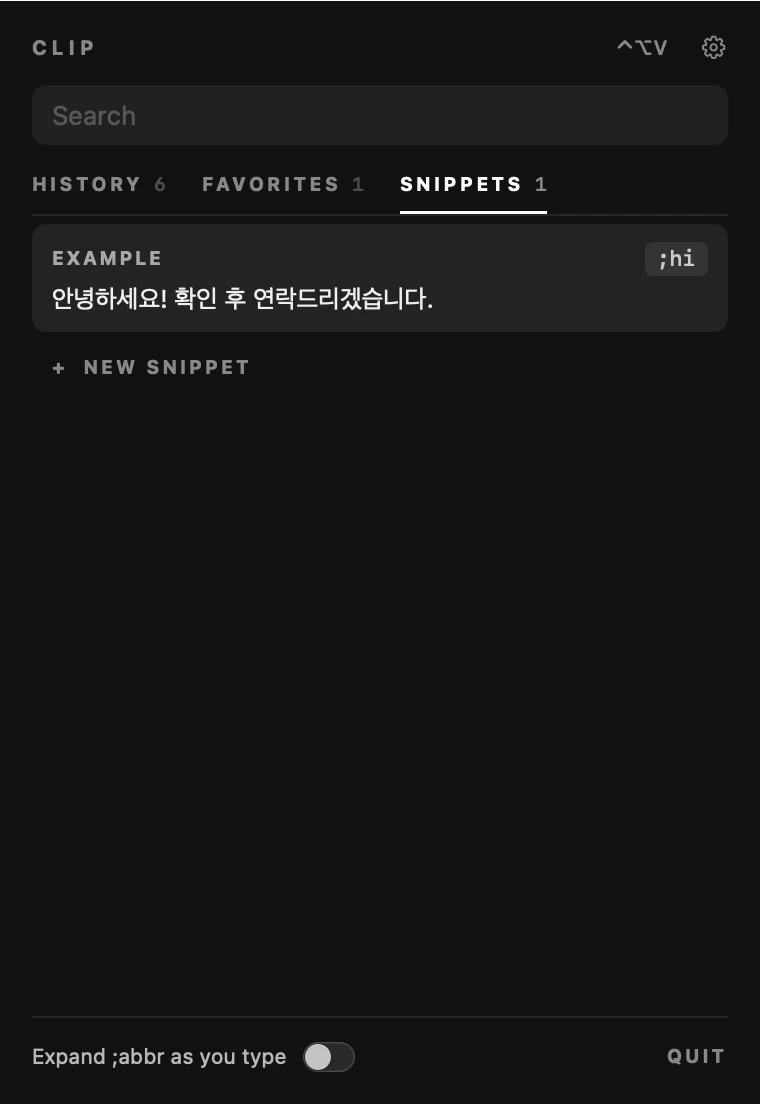
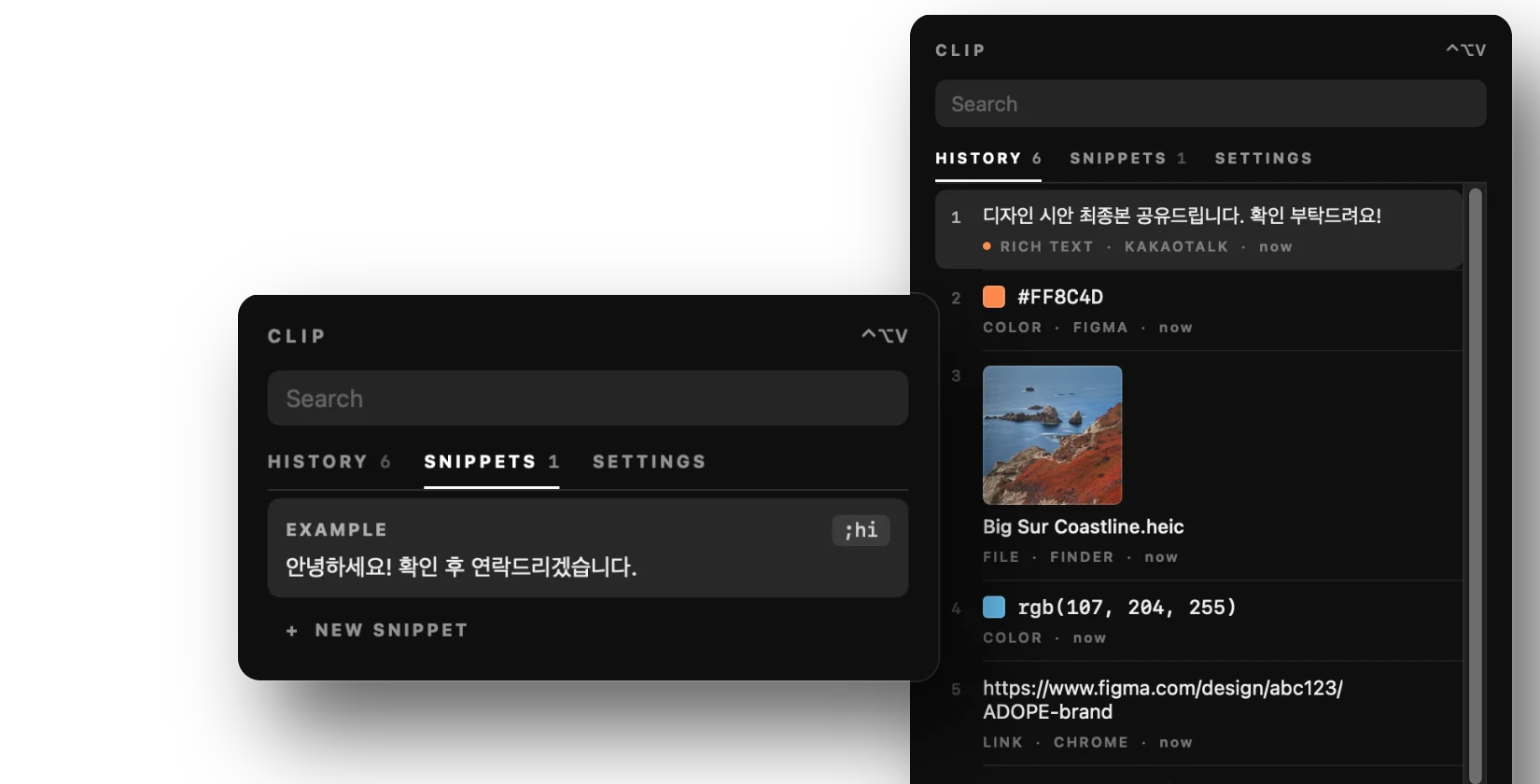
자주 쓰는 문장을 스니펫으로 저장하고 짧은 약어를 붙여둡니다. 어디서든 약어를 입력하면 저장한 문장으로 바뀝니다.Save sentences you use often as snippets with a short abbreviation. Type the abbreviation anywhere and it's replaced with the full text.

Mail · 새 메시지New message;hi
Snippets tab: an example snippet with the abbreviation ;hiSnippets tab: an example snippet with the abbreviation ;hi
A hovered row with ☆ and → SNIPPET buttons

기록에서 바로 스니펫 만들기 — 행에 마우스를 올리면 → SNIPPET 버튼이 나타납니다(⌘S). 누르면 스니펫 탭으로 넘어가며 편집 칸이 바로 열려, 이름과 ;약어를 붙일 수 있습니다.Snippet from history — hover a row for → SNIPPET (⌘S). It jumps to the Snippets tab with the editor open, ready for a name and ;abbreviation.

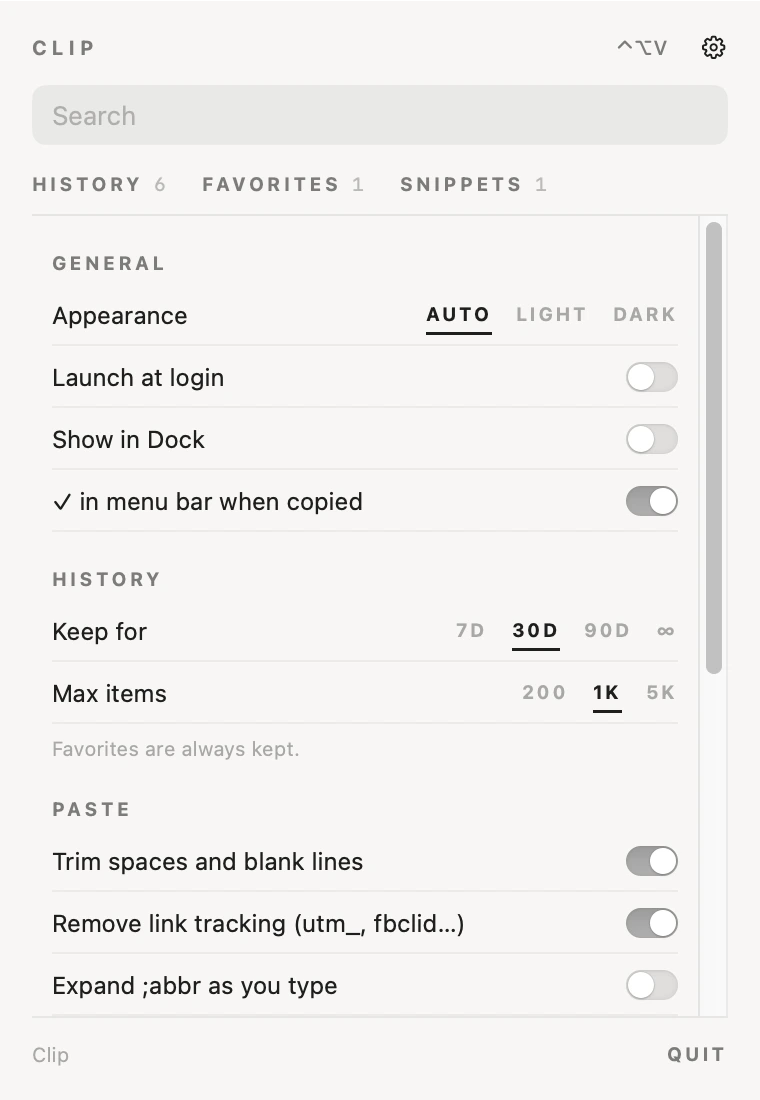
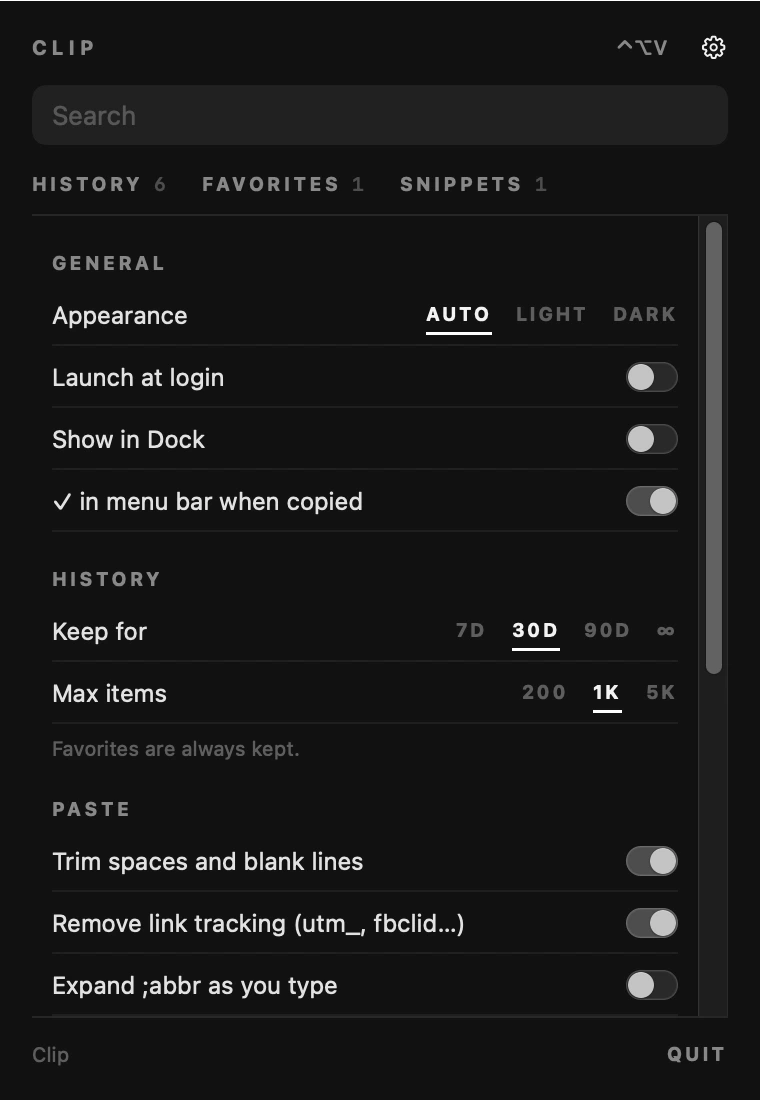
Settings: appearance, launch at login, show in Dock, menu bar check, history, paste optionsSettings: appearance, launch at login, show in Dock, menu bar check, history, paste options
06 — Settings

SettingsSettings

설정은 패널 오른쪽 위, ⌃⌥V 옆 설정 아이콘으로 열 수 있습니다.Settings open from the settings icon at the top right of the panel, next to ⌃⌥V.

화면 모드AppearanceAUTO · LIGHT · DARK 중 고를 수 있고, 기본은 맥 설정을 따릅니다.AUTO, LIGHT or DARK; AUTO follows the Mac.
실행 · 표시Launch and display로그인 시 실행, Dock에 표시, 복사하면 메뉴 막대에 ✓ 표시를 켜고 끌 수 있습니다.Launch at login, show in Dock, and the ✓ in the menu bar after copying.
보관 기간 · 개수How long, how many7일 · 30일 · 90일 · 무제한, 최대 200 · 1,000 · 5,000개. 즐겨찾기한 항목은 항상 남겨둡니다.7, 30 or 90 days or forever; up to 200, 1,000 or 5,000 items. Favourites are always kept.
붙여넣기 정리Paste clean-up앞뒤 공백과 빈 줄을 정리하고, 링크 추적을 지웁니다.Trims spaces and blank lines, and strips link tracking.
로컬에만 저장Stored locally기록은 사용 중인 맥 안에만 저장되고 외부로 보내지 않습니다.History stays on this Mac and is never sent anywhere.
07 — Shortcuts

단축키Shortcuts

패널 열기Open panel⌃⌥V
붙여넣기 스택Paste stack⌃⌥X
붙여넣기Paste↩
서식 유지Keep formatting⌥↩
스택에 넣기Add to stack⇧↩ ⇧Click
해당 번호 붙여넣기Paste by number⌘1–9
즐겨찾기Favourite⌘D
스니펫으로 저장Save as snippet⌘S
탭 전환Switch tabTab
08 — Plate · Colour

종이와 먹색Paper and charcoal

종이색과 먹색 두 컬러를 베이스로 화면을 만들고, 포인트 색은 선택한 항목에만 사용했습니다. 두 모드는 설정에서 고르거나 맥 설정을 따라가게 할 수 있습니다.Two base tones, warm paper and deep charcoal, with the accent used only to mark the selected item. Pick either in settings, or follow the Mac.

Paper#F8F7F5
Selected#E8E7E5
Accent · light#E95E27
Accent · dark#FE824A
Selected#232323
Charcoal#111111
09 — Plate · Type

세 가지 폰트 사용Three kinds of type

디자인 시안
내용 — 시스템 서체, 가장 크게Content — system font, largest
RICH TEXT · NOW
정보 — 작은 대문자, 넓은 자간Meta — small caps, wide tracking
#FF8C4D
값 — 고정폭 서체 (색상 · 코드)Values — monospace (colours, code)
10 — Plate · App icon · 1024 px

앱 아이콘App icon

App icon: a clipboard with orange, purple and blue lines
클립보드A clipboard앱 이름 그대로 클립보드 모양을 사용했습니다.A literal clipboard, matching the name.
세 줄의 기록Three lines길이가 다른 세 줄로 차곡차곡 쌓이는 기록을 표현했습니다.Three lines of different lengths for a history that stacks up.

작업하면서 자주 붙여넣는 문장과
색상값을 꺼내 쓰려고 만들었습니다.
Made to reach the text and colour values
I paste most while I work.

기획 · 디자인 · 개발 — RIDA HAPlanning · Design · Development — RIDA HA ← Works